
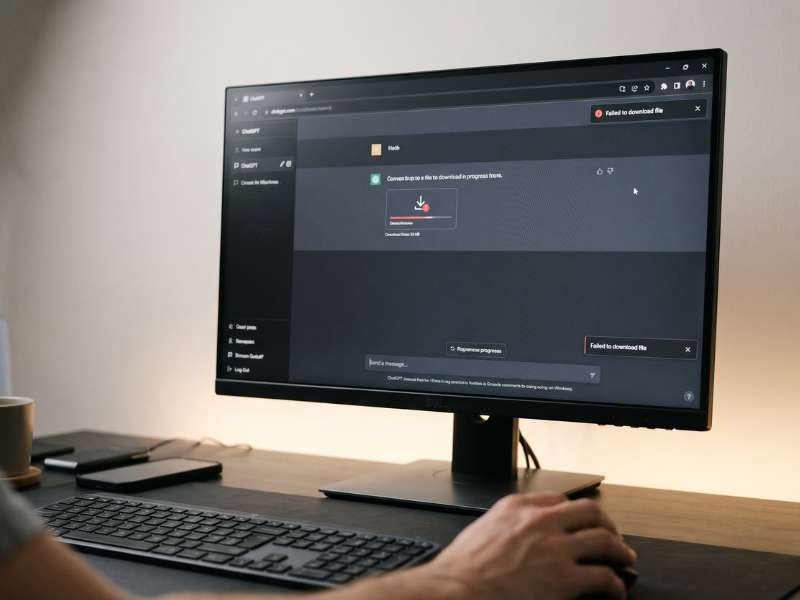
When ChatGPT generates a document, code archive, or image, clicking the inline download link occasionally triggers a Failed to download file. Please try again later error. This typically happens because the temporary content delivery network link has expired or the underlying sandbox environment has timed out.
Instead of getting stuck with a broken download card, you can use a few practical workarounds to recover your files without losing your conversation context.
Method 1: Force File Regeneration via Code Prompt
If ChatGPT created a file using code execution (such as a Python script, PDF, spreadsheet, or ZIP archive), the easiest fix is to ask the model to package and present the file again. Re-triggering the script generates a fresh link with a valid token.
- Return to the active chat thread where the error occurred.
- Type a short prompt asking the model to recreate the file, such as: *”The previous download link expired. Please re-run the script and provide a fresh download link for the file.”*
- Wait for ChatGPT to execute the request and generate a new inline download card.
- Click the newly generated link to save your file.
Method 2: Switch Models or Start a Fresh Session
If the container environment remains unresponsive and keeps throwing errors, switching models can force the chat interface to spin up a fresh session context.

- Locate the model selector at the top of your chat window.
- Switch to a different available model (for instance, toggle between standard GPT-4o and a reasoning model).
- Send a follow-up message asking the model to output the requested file in the current session.
- Download the asset using the newly spawned download link.
Method 3: Check Browser Extensions and Network Settings
Aggressive script blockers, privacy extensions, or strict browser tracking protection can sometimes interfere with temporary blob URLs and file downloads generated by web apps.
- Temporarily pause your ad-blocker or script-blocking extension for the ChatGPT domain.
- Open a private browsing or Incognito window, log into your account, and navigate to the chat thread.
- Attempt the download again from the clean browser session.
If the inline link still fails, copy the raw text or code blocks directly out of the chat window into a local text editor or document file as a reliable fallback.