
When Microsoft OneDrive gets stuck in a synchronization loop, you might notice your games suddenly stutter, freeze, or crash entirely. This happens because automated folder backup redirects core directories like Documents into the cloud. When a game continuously writes save data or configuration settings, OneDrive locks those files simultaneously, creating input/output conflicts that crash local software.
You can fix these crashes and restore stable performance by managing how OneDrive interacts with your user directories.
OneDrive Stops Syncing, Games Crash Fix
Understanding the Conflict
Windows games frequently save progress, profiles, and settings inside the default Documents folder. If OneDrive backup is active, every minor save state triggers a background file upload. When sync stalls or encounters a bottleneck, OneDrive places an exclusive read/write lock on those files. Your game tries to update the same save file, encounters a sharing violation, and crashes to the desktop.
Method 1: Temporarily Pause Sync During Gameplay (Easiest Method)
If you want to keep your cloud backups enabled but stop them from interfering with active gaming sessions, you can manually pause OneDrive before launching resource-intensive titles.
- Look at your Windows taskbar in the bottom-right corner and click the OneDrive cloud icon (you may need to click the upward-pointing caret arrow to find it).
- Click the Gear icon (Settings) in the top-right corner of the OneDrive flyout menu.
- Select Pause syncing from the list.
- Choose your preferred duration (2 hours, 8 hours, or 24 hours).
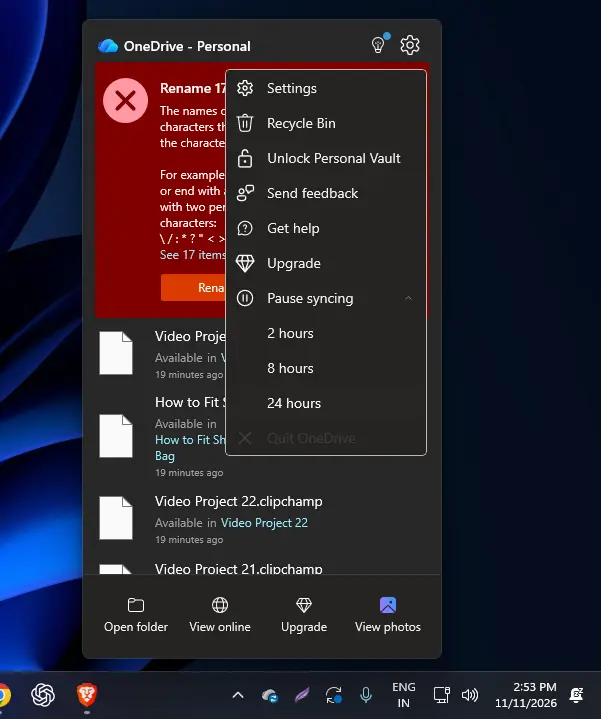
Expected Result: OneDrive stops attempting to upload or index local files for the chosen duration, freeing up system resources and eliminating file-lock conflicts while you play.
Method 2: Stop OneDrive Backup for the Documents Folder
To permanently prevent OneDrive from holding background locks on your game save directories, you can disable folder redirection for the Documents folder.
- Click the OneDrive icon in your system tray and open Settings (the gear icon).
- Select the Sync and backup tab from the left sidebar.
- Click the Manage backup button.
- Toggle off the switch next to Documents.
- Confirm your choice in the prompt. Windows will move your files back to local profile folders, though shortcuts or cloud-only placeholders may remain until accessed.
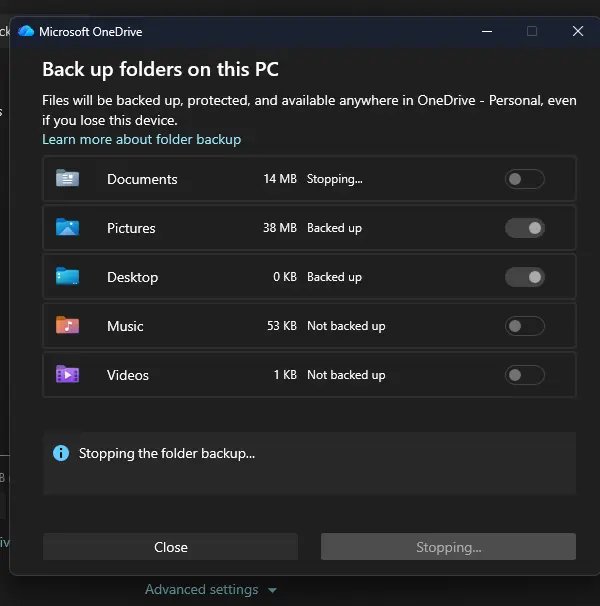
Expected Result: Your game configuration and save files remain safely on your local drive without cloud interference, stopping sync-related crashes.
Method 3: Unlink OneDrive and Restore Local File Paths
If games continue to throw read-only errors or fail to save properly after stopping folder backup, you may need to disconnect your account to clear persistent handle conflicts.
- Open OneDrive Settings from the system tray.
- Go to the Account tab.
- Click Unlink this PC and confirm by selecting Unlink account.
- Restart your computer.
- Open your user profile folder (
C:\Users\YourUsername) and ensure yourDocumentsfolder is pointing back to its default local directory instead of a cloud remnant.
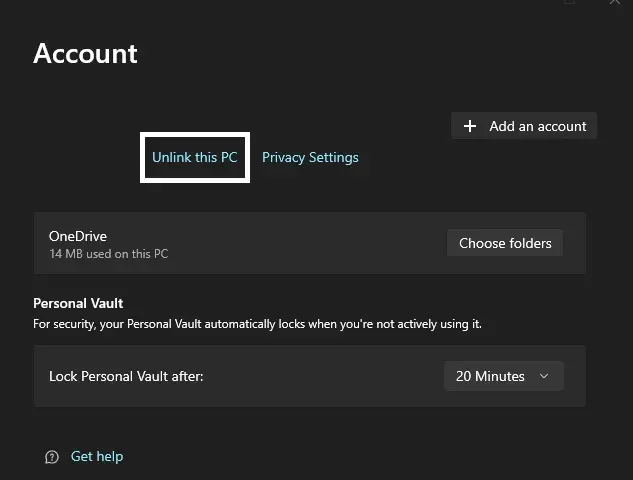
Expected Result: OneDrive stops running in the background entirely, returning full ownership of your user directories back to Windows local management.