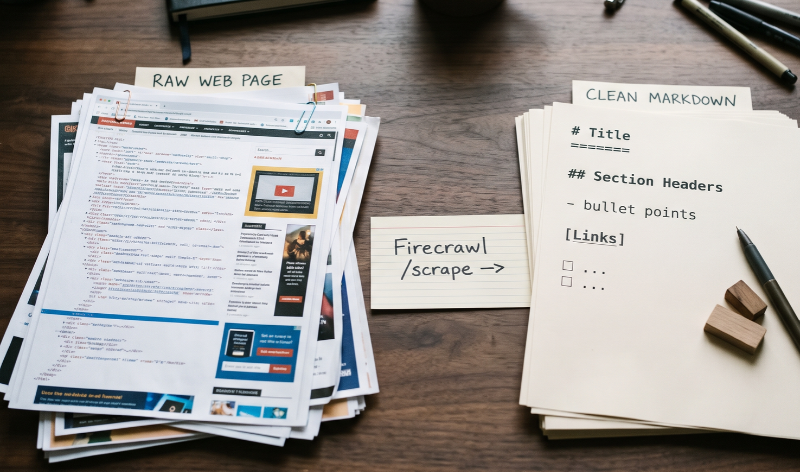
Firecrawl turns a public web page into a Markdown file. If you want to save a tutorial, keep a copy of a documentation page, or give an AI tool just the text it needs,. Then, you can do it from the terminal with one command.
In this guide, I’ll show you how to convert a single page, save the output as a .md file, and check whether Firecrawl captured the parts you wanted or not.
What does Firecrawl keep from a web page?
When you copy a whole page from your browser, you can end up with the navigation menu, sidebar links, and footer mixed into the article. Firecrawl can extract the page as Markdown, which keeps useful formatting like headings, lists, and links in a plain text file. Firecrawl can also render JavaScript, which helps when the text appears only after the page loads.
For example, if you save a software setup guide, open the Markdown file and look for the setup heading, the numbered steps, and any command examples. If the file has the heading but none of the steps, it’s worth checking the original page before you use the output.
Turn a Web Page into Clean Markdown with Firecrawl
Create Account and Claim 1000 Credits.
To use Firecrawl, you need to sign up and create an account and you will get 1000 Free Credit and a API Key.
- You can sign up using your GitHub or Google Account.
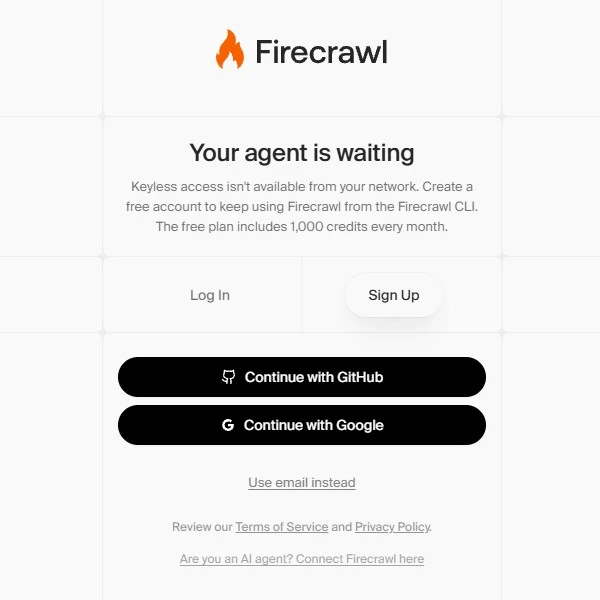
- I suggest you to use your GitHub Account, you just have to Authorize firecrawl.
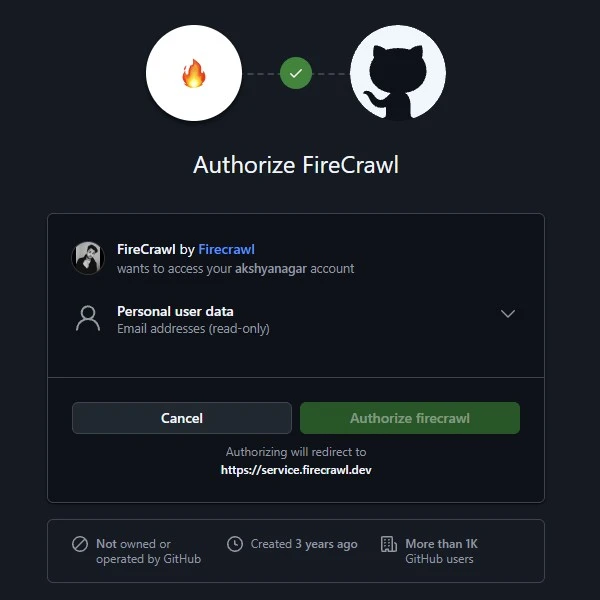
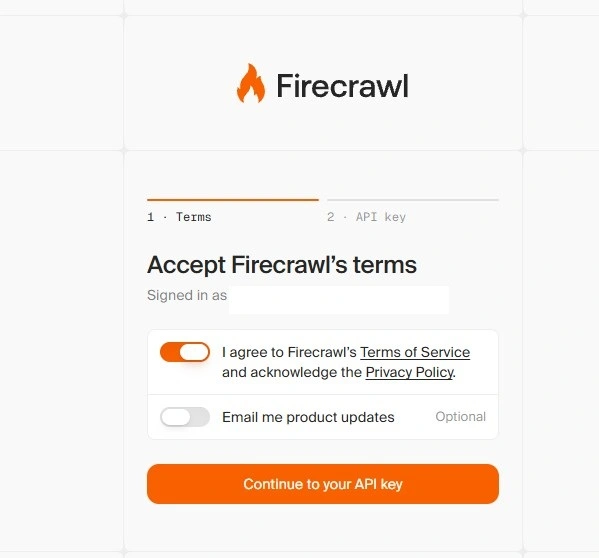
- Once you do it, you can continue to your API Key.
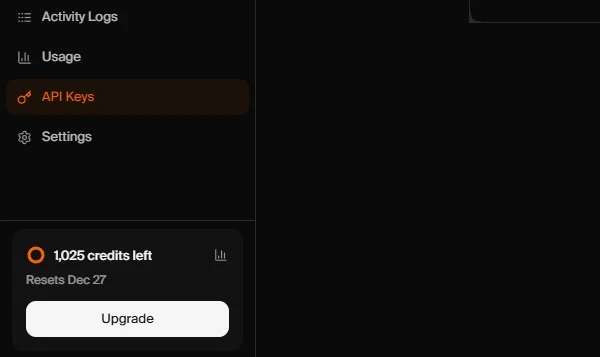
- That’s it, now you will see 1000+ credit in your Firecrawl Account. Which you can use to Turn a Web Page into Clean Markdown.
- After that, open Terminal (Admin) in Windows by right-clicking on start button. And, run the following prompt in it.
npx -y firecrawl-cli@latest init --all --browser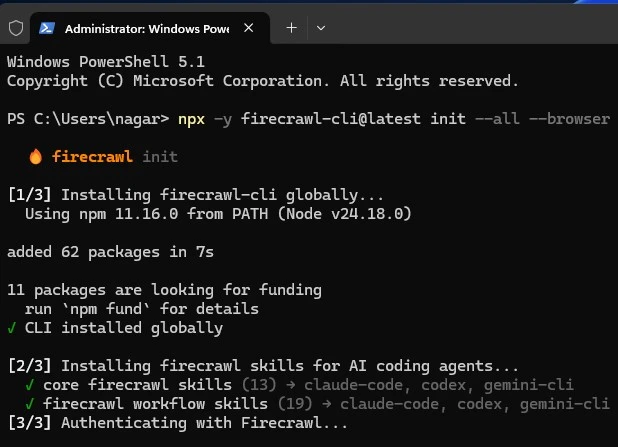
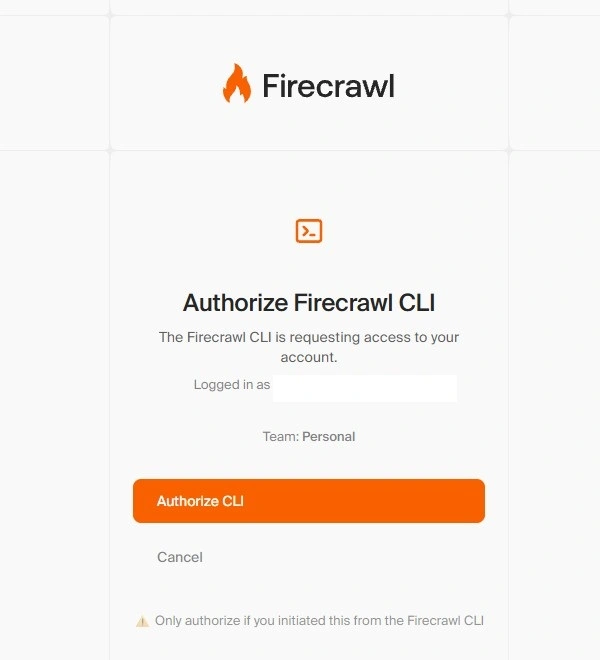
- Your default browser window will open in which you have Created account. From there, you can click on “Authorize CLI”.
Method 1: Convert one page with npx
If you already have Node.js and npm, open PowerShell, Command Prompt, or Terminal. Run the command below with a public URL. This runs the Firecrawl CLI without installing it globally.
Add BounceGeek as a preferred source to find more of our tech guides and troubleshooting articles on Google.
npx -y firecrawl-cli@latest scrape "https://www.example.com/" -o example.md
notepad .\example.md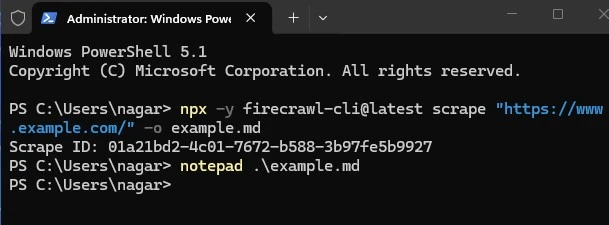
Replace https://example.com with the page you want to save. You can find your markdown file in the folder in which you are running command. Like, you can see i can find my markdown file inside the "C:\Users\nagar\example.md". So, it would be better if you change directory before running the command. You can use cd to change directory.
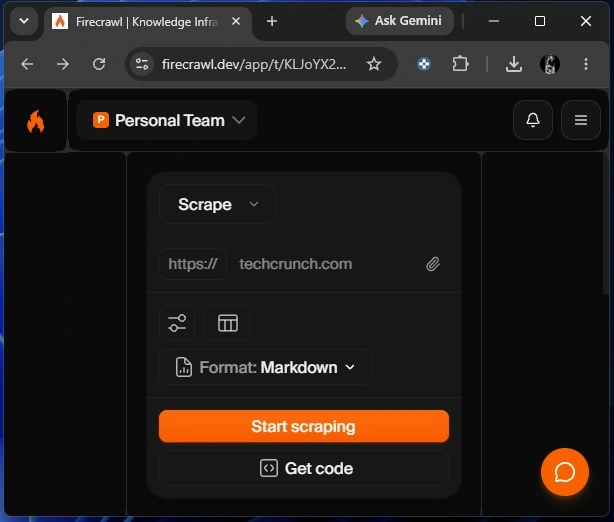
Alternative Method: If you don’t want to use prompt everytime. You can simply use firecrawl website. After sign up go to the Scrape a web page option and from there you can enter URL and generate markdown file. Even, you can use it with claude code, codex and opencode.
Method 2: Install the CLI and save the output to a file
If you plan to convert pages regularly, install the CLI once:
npm install -g firecrawl-cliThen run the scrape command with -o and a file name:
firecrawl scrape "https://example.com" -o page-content.mdOpen page-content.md from the folder where you ran the command. You can read it in a text editor or import it into a notes app that accepts Markdown. To compare two pages, give each output file a different name.
How much does Firecrawl cost?
As of November 26, 2026, Firecrawl’s hosted Free plan includes 1,000 credits per month and requires no credit card. A basic Markdown scrape uses one credit per page. The Hobby plan includes 5,000 credits per month for $19 USD when billed monthly, or $16 USD per month when billed annually. Other operations and output formats can use more credits, so check the pricing before switching from a single page to a larger job.
What to do if the Markdown is incomplete
First, open the URL in your browser and check that it leads straight to the article or documentation page. A homepage or category page may contain mostly links. If the file only shows a login prompt, an error, or a cookie banner, try a public page that you can read without signing in.
Finally, compare the saved file with the original. Check the headings, links, and code examples before you archive it or pass it to an AI tool. Markdown makes the text easier to reuse, but it can still miss information shown only in images, embeds, or interactive parts of the page.