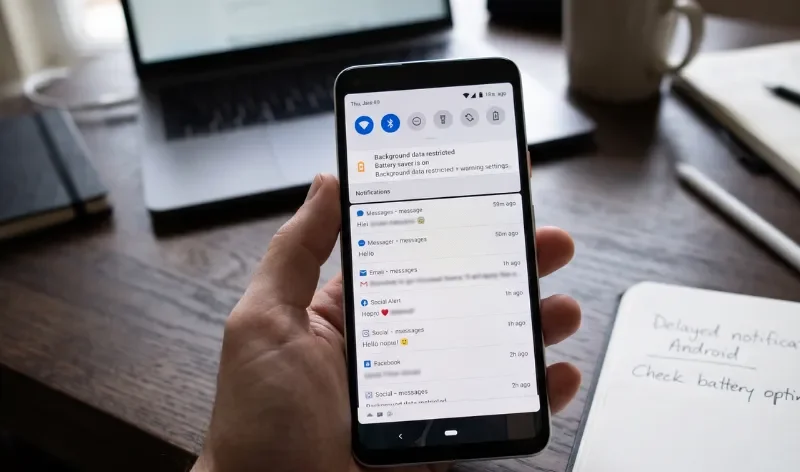
If you have ever noticed that your chat messages or app alerts only show up the exact moment you unlock your phone or open the app, you know how frustrating it can be. It often feels like your phone is ignoring you until you force it to pay attention. Most quick fixes tell you to turn off standard battery saver modes. But, your phone keeps delaying notifications anyway.
The reason this happens comes down to how Android manages your battery. Built-in features like Doze mode and App Standby put background apps to sleep to save power. And, stopping them from checking for new messages. On top of that, phone makers like Samsung, Xiaomi, and OnePlus add their own aggressive task managers that force background services to close completely.
To fix this for good, you need to dig a little deeper into your system settings and lift the restrictions holding your apps back.
Fix Delayed App Notifications on Android
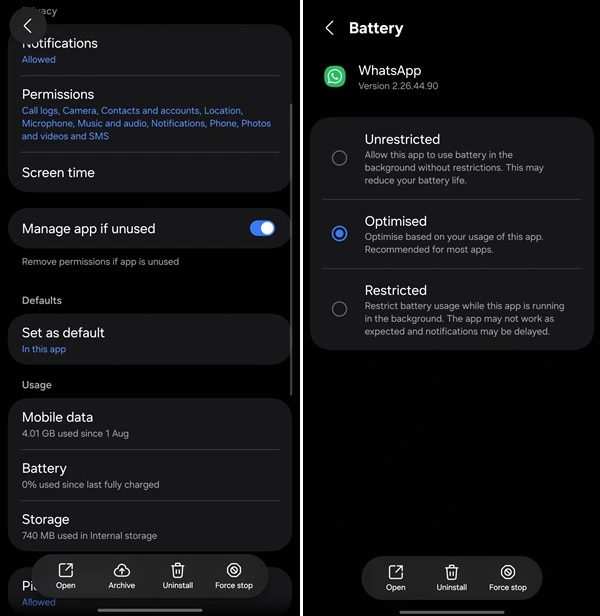
Step 1: Switch App Battery Profile to “Unrestricted”
Most Android phones let you choose how much freedom an app gets in the background. While the default setting tries to balance battery life and performance. It often throttles messaging apps when your screen is off. Moving your important chat or utility apps to an unrestricted profile lets them stay active whenever they need to.
Add BounceGeek as a preferred source to find more of our tech guides and troubleshooting articles on Google.
- First, open your phone’s Settings app and tap on Apps or App management.
- Scroll down or search to find the specific app that is giving you delayed notifications, and tap on it to open its info page.
- Look for an option called Battery or App battery usage and open it.
- Change the setting from Optimized or Restricted to Unrestricted, which tells Android to let this app run freely in the background even if it uses a bit more power.
Step 2: Clear OEM-Specific Background Restrictions
If you use a phone from Samsung, Xiaomi, Oppo, or OnePlus, your device has an extra layer of background management that goes beyond standard Android settings. These manufacturer skins often put apps into “deep sleep” if you haven’t opened them in a couple of days, which completely blocks incoming notifications.
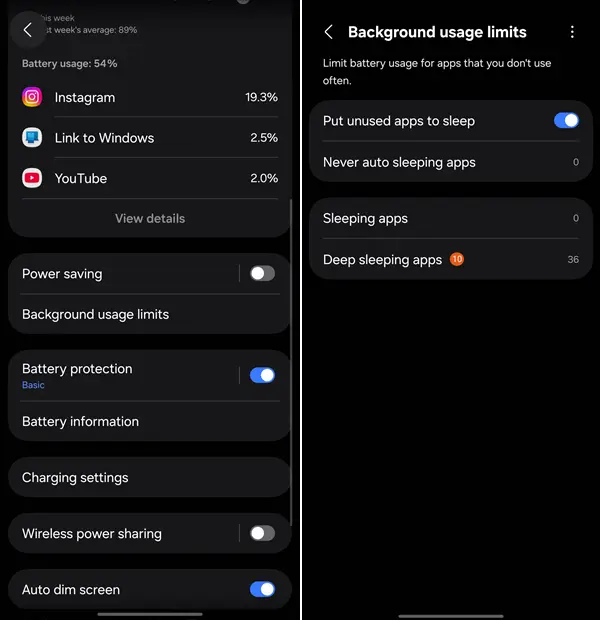
- If you are using a Samsung device, open Settings, go to Battery.
- Next, tap on Background usage limits.
- Check your Sleeping apps and Deep sleeping apps lists to make sure your important messaging apps aren’t trapped in there. If you find them, remove them.
- If you are using a Xiaomi or Redmi phone, open your system settings, look for Apps.
- Next, tap Permissions, and select Autostart.
- Make sure the toggle next to your messaging apps is turned on so they can wake up automatically when your phone boots up or receives data.
Step 3: Enable Unrestricted Background Data
Even if your processor and battery settings allow an app to run, it won’t receive messages if the system cuts off its internet access while running in the background. Enabling unrestricted data ensures the app can always maintain an active connection to receive push notifications.

- Open your phone’s Settings and head to Apps, then select the app you want to fix.
- Tap on Mobile data & Wi-Fi or Data usage.
- Look for toggles labeled Allow background data usage and Allow data usage while Data Saver is on.
- And, make sure both are turned on. If your phone has a system-wide Data Saver mode enabled, you can also tap Unrestricted data inside your main network settings to carve out an exception for your essential chat apps.
Step 4: Lock the App in Your Recent Apps Menu
Sometimes Android clears apps out of your phone’s short-term memory to free up RAM, especially if you open a lot of heavy games or browser tabs. When an app gets swiped away or cleared from memory by the system, its background notification listener stops working until you open it again manually. You can prevent this by locking the app in your recent apps screen.
- Swipe up from the bottom of your screen and hold your finger in the middle to open your Recent Apps task switcher.
- Find the card for your messaging app and tap the app’s icon at the top of the preview window, or long-press the preview card.
- Tap the option that says Lock this app or Keep open.
- You will see a small padlock icon appear on the app card, which tells your phone’s memory manager to leave this app alone when you clear your recent tasks.
Troubleshooting and Testing
After adjusting these settings, it is a good idea to test whether your notifications are coming through properly. Ask a friend to send you a message, or send yourself a test note from another device, while your screen is locked and your phone sits untouched for a few minutes. If the alert pops up instantly without you having to wake up or unlock the screen, your background restrictions are successfully lifted. If alerts are still delayed, double-check your phone’s Wi-Fi power-saving settings. As some routers or device power profiles put wireless chips to sleep during prolonged periods of inactivity.