
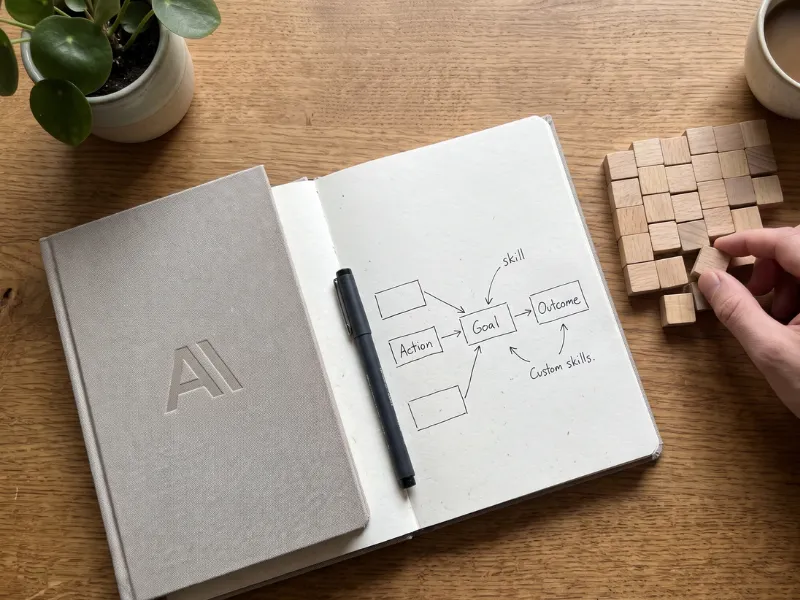
If you find yourself repeatedly typing the same formatting instructions, brand guidelines, or multi-step prompt directions into Claude, you are wasting valuable time. Instead of relying on static text snippets or manual copy-pasting, you can build and use Claude Skills.
Claude Skills package custom workflows and instructions into dynamic modules that Claude loads automatically when your prompt matches the task. This beginner-friendly guide walks through creating and using a custom skill without writing code.
Prerequisites and Enabling Skills
Before creating a skill, you need a Claude account (Free, Pro, Team, or Enterprise) with the necessary feature toggles enabled.
- Log into your account on the Claude web or desktop app.
- Click on your profile name or icon in the bottom-left corner and select Settings.
- Look for Capabilities settings in the menu.
- Ensure that features like Create and edit files or file handling capabilities are toggled on, as skills rely on these background functions to process correctly.
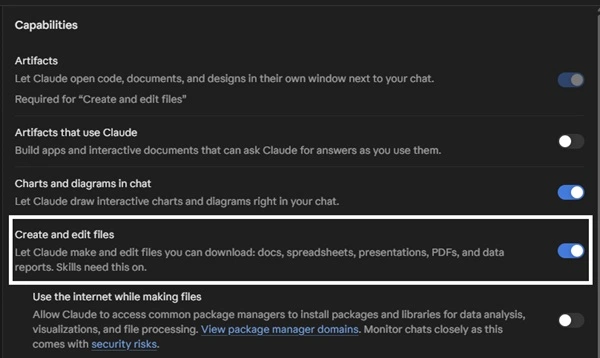
*Note: Menu labels can vary slightly depending on your account tier and recent interface updates.*
Create and Use Claude Skills
Step 1: Use the Skill Creator to Build Your Skill
The easiest way to make a custom skill without dealing with manual code files or terminal commands is to use Claude’s built-in skill creation helper.
- Open a fresh chat window in Claude.
- Ask Claude to help you build a new skill. You can type
Let's create a skill together using your skill-creator skill. First ask me what the skill should do. - Claude will act as a skill creator, asking you questions about what you want the skill to do, how it should behave, and what rules it must follow.
- Answer Claude’s questions clearly, providing your exact guidelines or examples of desired outputs.
- Once finalized, Claude will generate and package the skill files for you and provide a download link for the package (usually structured as a specialized folder or file archive). Download this file to your computer.
Step 2: Upload and Enable Your New Skill
Once you have your skill package downloaded, you need to add it back into your account settings so Claude can access it during chats.

- Navigate back to your account Settings.
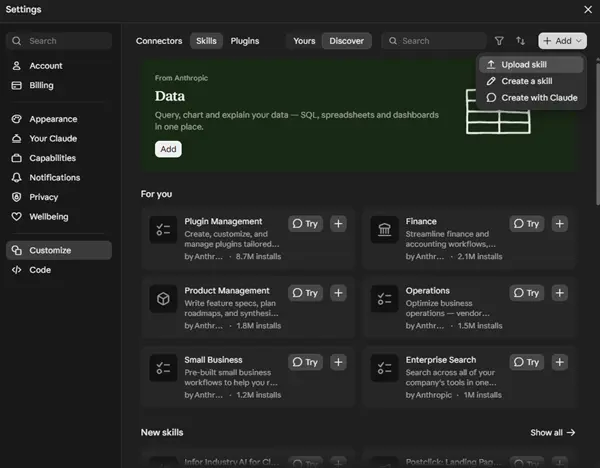
- Locate the Customize > Skills.
- Click on Add > Upload Skill button.
- Select the skill package file you downloaded in Step 1.
- Confirm that the skill appears in your list of active capabilities and ensure its toggle switch is turned On.
Step 3: Test and Refine the Skill
With your skill active, it is time to verify that Claude loads and executes it properly.
- Open a completely new chat window (existing chats may not load newly toggled skills retroactively).
- Type a prompt that triggers your workflow. For example:
Draft a weekly status report for the marketing team based on these rough notes: [insert rough notes]. - Observe the output. A successful skill will automatically apply your custom formatting, tone, and step-by-step rules without you having to re-type them.
If Claude misses a step or fails to format the output correctly, return to your initial skill chat or edit the source instructions, re-export the package, and re-upload it to refine its performance.